---
title: "Getting Started"
description: "The entry point for your Topol Editor integration. Embed Topol Plugin in a few lines of code. Progressively implement features as you go."
url: https://docs.topol.io/email-editor/guide/getting-started.html
---
# Getting Started with Topol Plugin
Embedding Topol Plugin takes two steps: **create an API token, then add a container element and a short script to your page.** Everything else is optional and can be layered on later.
> **Using React, Vue, or another framework?**
>
> **Step 1** applies to every integration. Step 2 does not; follow [NPM & Frameworks](https://docs.topol.io/email-editor/guide/js-frameworks.html) instead.
## Step 1: Create your API token
Log into your [Topol Account](https://app.topol.io), open the **API Tokens** tab and click **\+ New API Token**. The page that opens creates the token that authorizes the Topol Plugin in your application.
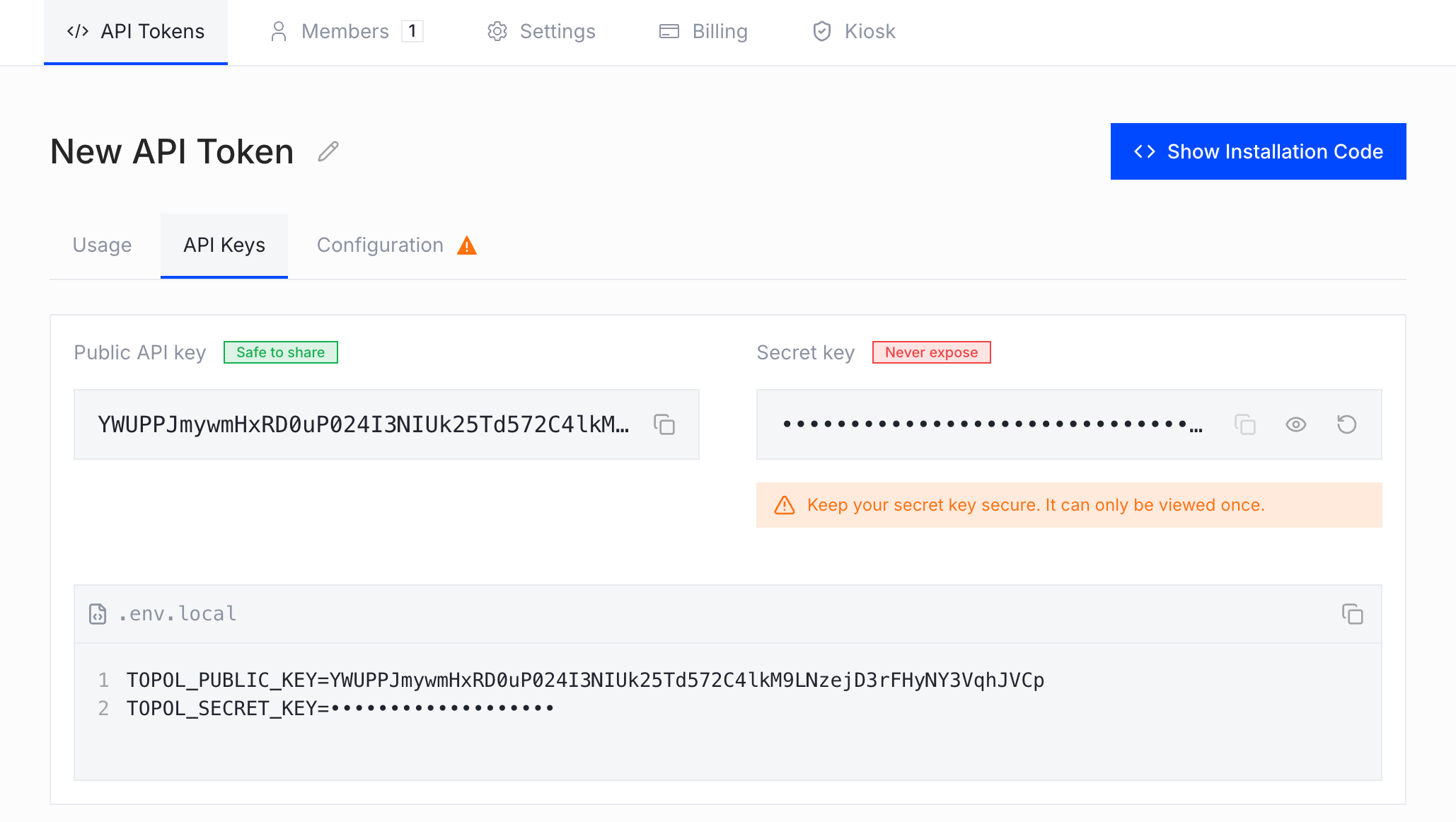
The token comes with two keys, shown in the **API Keys** tab: the **Public API key** goes into the Plugin configuration in your page, and the **Secret key** authorizes [direct calls to the Topol API](https://docs.topol.io/email-editor/guide/how-to-get-secret-key.html) and must never be exposed in client-side code.
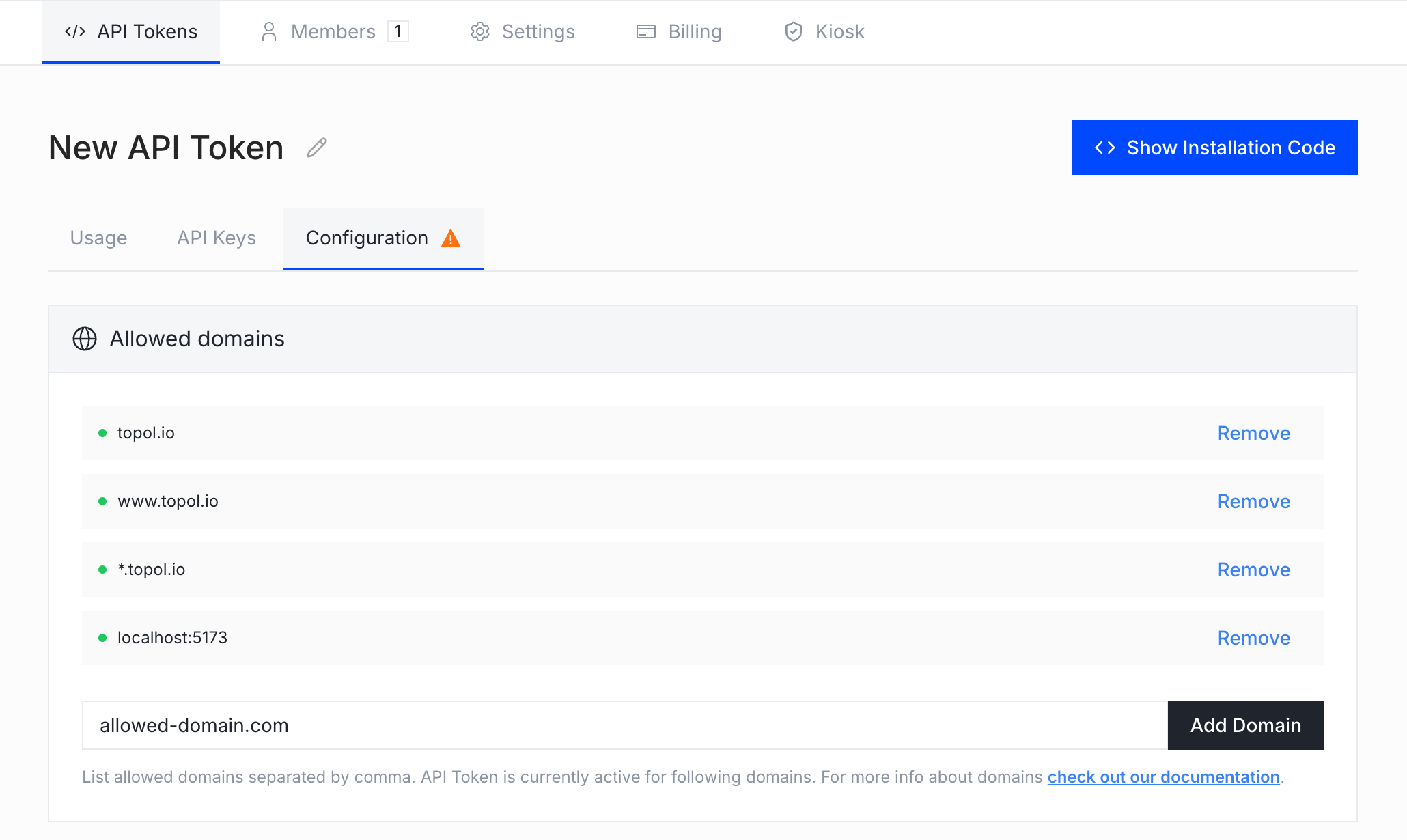
With the token created, switch to the **Configuration** tab and add every domain where the Plugin will run to the **Allowed domains** list.
> **WARNING**
>
> The token only works on the domains listed in its configuration.
## Step 2: Add the Plugin to your application
With the API key ready, the Plugin goes into your page in two pieces: a container element and a script that configures and starts the editor. (In a framework app, the [NPM packages](https://docs.topol.io/email-editor/guide/js-frameworks.html) replace this setup.)
> **Let an AI agent do the wiring**
>
> [TOPOL-io/skills](https://github.com/TOPOL-io/skills) has two skills for coding agents, written as plain markdown. `topol-editor-integration` sets up either editor in a new project and `topol-v1-upgrade` moves an existing NPM integration from 0.x to v1. They install as a Claude Code plugin (`/plugin marketplace add TOPOL-io/skills`) or into any agent with `npx skills@latest add TOPOL-io/skills`.
**First, add this HTML where you want the editor to appear.** The container needs an explicit width and height, otherwise the editor has no space to render:
```html
```
**Next, load the Plugin script and initialize it:**
```html
```
**Important notes:**
- The `apiKey` is the **Public API key** from [Step 1](https://docs.topol.io/email-editor/guide/getting-started.html#step-1-create-your-api-token).
- The `userId` can be any unique string that identifies your user (letters, numbers, \_ or -). It determines where that user's images are stored and counts as one unique user for monthly billing. Typically, one `userId` corresponds to one client of your app, CRM, ESP, etc. Reusing a single `userId` across several people counts them as one user and gives them a shared image library.
- The example also loads a sample template from a URL. Replace it with your own template, or drop that optional block to start the editor empty.
> **INFO**
>
> Running into trouble while implementing the Topol Plugin? **Contact our support team** [here](https://topol.io/contact) and we'll help you get it working.